
Adaptive, I-Frame or Per-Frame: ClapClip's Enhancement Modes
ClapClip Team · Published on 2026-11-08 · 7 min read
Every video enhancer has to answer one question: does the AI model run on every frame, or not? Running it on every frame is the honest brute-force answer and the reason most tools take hours for a few minutes of footage. ClapClip's Windows enhancer gives you that option and two others that get most of the quality for a fraction of the work, by enhancing anchor frames with the model and reconstructing the frames between them from motion.
This guide explains the three modes, the models you can run inside them, and which combination fits which job. It describes the enhancer inside ClapClip AI for Windows; the browser-based single-image tool lives on enhance.place and is covered there.
Key takeaways
- Three modes. Adaptive and I-frame run the model on selected anchor frames and rebuild the rest by optical-flow alignment; Per-frame quality runs it on everything.
- Five restoration models. General (up to 4×), Standard (2×, the default), Fast (1× or 2×), Deblur (1×) and Animation (2× or 4×), plus two portrait passes that can be layered on top.
- Everything runs on your GPU. ONNX Runtime on DirectML, so NVIDIA, AMD and Intel cards all work; no Python environment, no upload.
- Preview free, export with the subscription. A short clip at the playhead is enhanced for free so you can judge settings before committing the whole file.
- Default is a sensible middle: Standard model, Adaptive mode, 1× output, portrait off.
The three modes
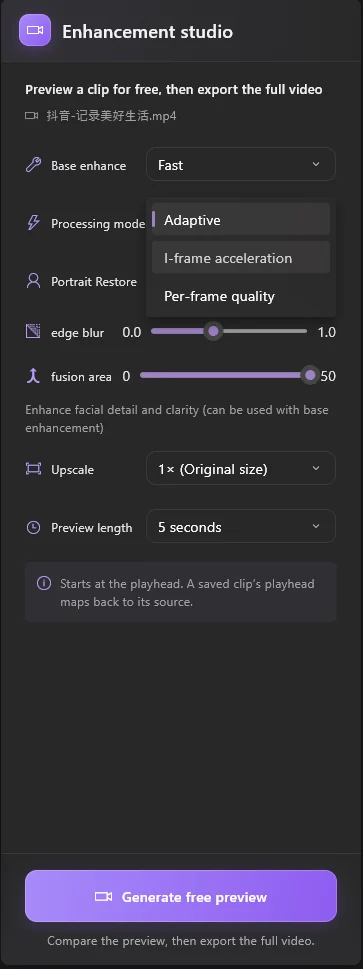
| Mode | Model runs on | Other frames | Use when |
|---|---|---|---|
| Adaptive | Anchor frames at intervals, at scene cuts, and wherever the reconstruction is not confident | Rebuilt from the nearest enhanced anchors: motion between frames is estimated, the anchor is aligned to the frame and the residual is completed | Most footage. Fastest path that still reacts to difficult frames |
| I-frame acceleration | The I-pictures the encoder already placed in the file, plus the first frame after a cut when there is no reference | Rebuilt from the nearest enhanced anchor within the same shot; falls back to basic processing if reconstruction fails | Clean, well-encoded sources with regular keyframes; predictable speed |
| Per-frame quality | Every frame | None | Final masters, footage with constant fast motion, or when you have the time and want no reconstruction at all |
The idea behind the first two is that neighbouring frames in a shot are mostly the same picture, shifted. Enhancing the anchor once and carrying the result along the motion is far cheaper than enhancing each frame from scratch, and the result is consistent from frame to frame because it comes from the same anchor rather than from independent passes that each hallucinate slightly different detail. A scene cut or a frame the reconstruction is unsure about becomes a new anchor, which is what "adaptive" means.
In Adaptive and I-frame mode the model works in half-precision tiles; Per-frame uses the full-precision weights. That is the quality trade: Per-frame is the reference, the other two are close to it at a fraction of the frames.
Rule: start with Adaptive. Use I-frame when the source is cleanly encoded and you want predictable timing. Reserve Per-frame for the final export of something that matters, after previewing it.
The models
| Option in the app | Model family | Scale | Made for |
|---|---|---|---|
| Standard (default) | Real-ESRGAN x2plus | 2× | Everyday video: screen recordings, stream VODs, phone footage |
| General | Real-ESRGAN | up to 4× | Larger upscales, 1080p to 4K, old footage that needs reconstruction |
| Fast | SPAN | 1× or 2× | When speed matters more than the last bit of detail; cleans compression at 1× |
| Deblur | NAFNet | 1× | Soft or motion-blurred footage at its original size |
| Animation | Real-CUGAN | 2× or 4× | Anime and drawn content; keeps lines sharp without inventing texture |
Two portrait passes can be layered on after any of these, or run on their own ("Portraits only"). The Portrait Restore menu offers nature, a lighter GFPGAN-based touch that keeps the camera's look, and enhance, a stronger GPEN-based restoration for soft or badly lit faces; the edge blur and fusion area sliders under it control how the restored face blends back into the frame. Portrait restoration runs per frame on detected faces regardless of the mode chosen for the rest of the picture.
The Animation model honours the same three modes, with conservative weights at 2× and 4× so line art is not over-sharpened. The Deblur model is 1× only: it fixes softness, it does not add pixels. Combine it with nothing when the problem is blur, and reach for Standard or General when the problem is size.
Rule: pick the model by the fault. Too small: Standard or General. Soft: Deblur. Drawn: Animation. Faces that matter: add a portrait pass. In a hurry: Fast.
Images
Drop a JPG or PNG into the same tool and it runs the chosen model once on the still and writes a PNG, keeping any transparency. The mode and preview-length controls disappear because they only apply to video. For a batch of product shots or old photos this is the quickest route; for one image the online enhancer on enhance.place does the job without the install.
Preview, then export
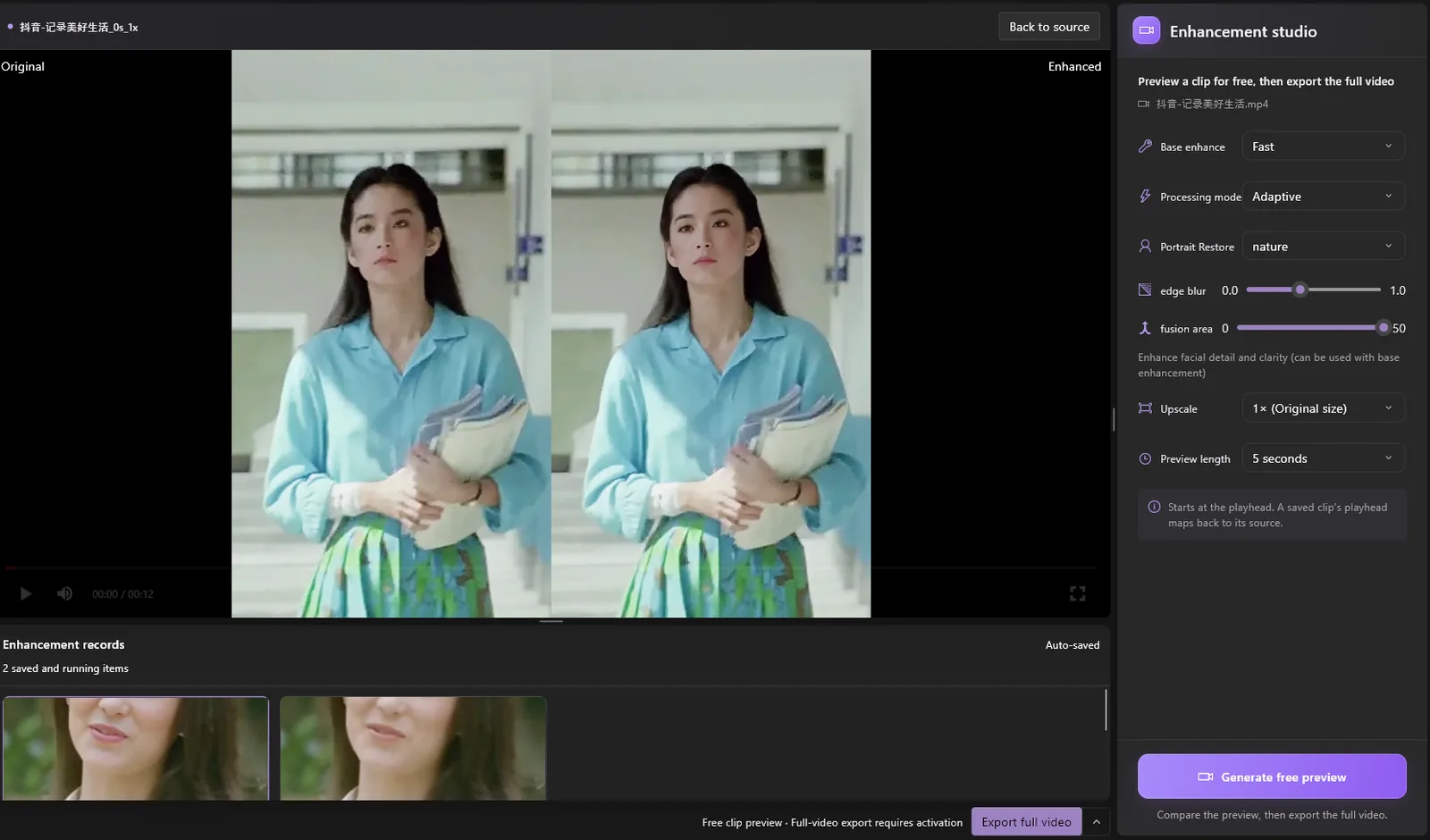
The enhancer previews a short clip from the current playhead for free, five seconds by default, so you can compare modes and models side by side before committing. Export processes the whole original file with the frozen settings; exporting is part of the subscription, along with batch export of a folder of files with one settings pass.
Inference runs on the GPU through DirectML, so NVIDIA, AMD and Intel graphics all qualify; there is no CPU path for the model, and no Python runtime to install. How long a file takes depends on the mode, the resolution in and out, the length and the card; the GPU settings guide on enhance.place covers memory headroom and what slows a job down, and the 2× upscaling measurement in our benchmarks shows what the models do to a real frame.
Rule: preview the hardest five seconds, not the first five. Fast motion, dark scenes and small faces are where modes and models separate.
Which combination for which job?
| Job | Mode | Model | Portrait |
|---|---|---|---|
| 1080p stream VOD to 4K | Adaptive | General 4× | Off, unless the streamer's face is the subject |
| Compressed screen recording, same size | Adaptive | Fast 1× | Off |
| Old family video, soft and noisy | Adaptive, then Per-frame for the export if time allows | General 2× | nature |
| Anime episode | I-frame | Animation 2× | Off |
| Interview with a soft lens | Per-frame | Deblur | enhance |
| Folder of phone clips for an edit | Adaptive | Standard | nature |
Bottom line
The reason this enhancer is fast is not a smaller model; it is that the model does not have to run on every frame. Adaptive mode decides where it must, I-frame mode uses the keyframes the encoder already chose, and Per-frame is there when you want the reference result. Choose the model by the fault, add a portrait pass when faces matter, preview the hardest stretch, and export. The enhancer ships inside ClapClip AI for Windows; the measured studies behind the product claims are in benchmarks.
Related ClapClip tools
AI Image Upscaler
Upscale images with AI on Windows. ClapClip enlarges photos while adding real detail — no blur, no uploads, fully local on your GPU.
Batch Video & Image Enhancement
Enhance multiple videos and images at once. ClapClip's batch mode processes a folder of files on your Windows GPU — no per-file limits, fully local.
Desktop Face Swap App
Download a private face swap app for Windows 10 and 11. Swap faces in videos and photos locally with live preview, GPU acceleration, and no uploads.