
Transcribe Research Interviews Without Uploading Them: A Local Workflow for Consent-Bound Audio
ClapClip Team · Published on 2026-11-03 · 6 min read
A consent form for a qualitative study usually promises two things about the recording: it will be heard only by the research team, and it will be stored on the institution's equipment. A transcription service that uploads the audio to a third-party server breaks both, however good its accuracy. The alternative is to run speech recognition on the machine the recording already sits on.
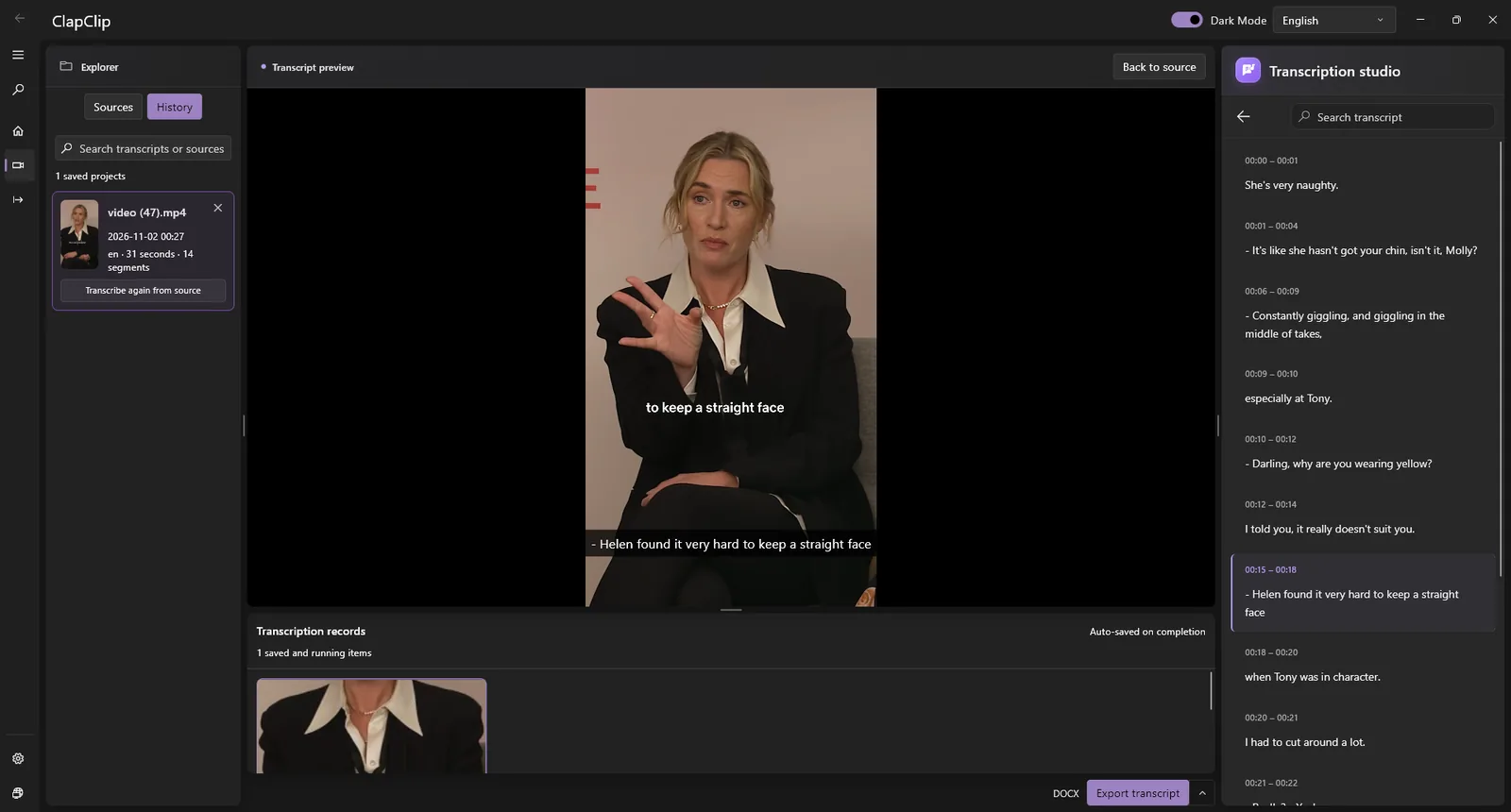
ClapClip for Windows does that: the recognizer runs locally, the file never leaves the disk, and the same pass writes plain text and SRT with timestamps that stay continuous across a two-hour interview. This guide is the workflow around it, from file naming to the review pass, for a study with dozens of recordings rather than one.
Key takeaways
- Nothing is uploaded. Recognition runs on your PC, with GPU acceleration where available and CPU fallback. Installation, model downloads and updates need a connection; transcription does not.
- Keep the original recording format. MP3, WAV, FLAC, AAC, M4A and OGG are accepted, as are MP4, MOV, MKV and WEBM with the audio track extracted automatically. Do not re-encode to a lower bitrate first.
- One folder per study, one batch run. Batch mode writes one output per input and can be stopped and resumed without losing finished transcripts.
- Budget the review, not the run. The machine does the typing overnight; the researcher's time goes into checking names, terms and overlapping speech against the timestamps.
Why does the consent form decide the tool?
Participant information sheets are specific about where recordings go. "Stored on encrypted university storage" and "accessible only to the named researchers" are common phrasings, and an ethics committee reads them literally. Sending the audio to a transcription API, even a reputable one with a deletion policy, is a transfer to a third party that the participant did not agree to.
Local transcription keeps the promise as written. The audio stays on the research machine, the transcript is written next to it, and the only thing that moves is what the researcher chooses to move. For a study that recorded people talking about their health, their employer or their family, that is the difference between a workflow the committee can approve and one it cannot.
Rule: if the consent form names where the recording lives, the transcription has to happen there.
How should you organize the recordings before you start?
- One folder per study, named for the project. Batch mode processes a folder and writes one transcript per input file, so the folder is the unit of work.
- Name files by participant code and date, not by name.
P07_2026-10-14.m4akeeps the pseudonymization you promised, and the transcript inherits the name. - Keep the original format. A phone recorder's M4A or a field recorder's WAV goes in as it is. Re-encoding speech to a smaller MP3 discards detail the recognizer uses, and that detail cannot be recovered later.
- Check free disk space. A long batch needs room for the sources, temporary files and the outputs. If the drive cannot hold all three, move the project before starting rather than letting the last file fail.
- Separate languages. Set the language for the batch; a folder that mixes English and Spanish interviews is two batches.
What does the batch run produce?
For each recording, a TXT file and an SRT file from the same transcription pass. The TXT is the reading copy; the SRT carries timestamps that stay continuous across the whole file, which is what makes it useful for research: every quote in the analysis can point back to a time in the recording.
There is no stated length limit. A ninety-minute interview is processed as one file, not split and stitched, so the timestamps do not reset partway through. Processing time depends on the model, the length of the recording and your hardware; a dedicated GPU is faster, and a laptop without one still finishes, just later. The long-audio guide covers the settings that stop a multi-hour job from being interrupted, such as sleep and power settings.
Rule: start the batch at the end of the day and let it run. Checking on it every ten minutes does not make it faster.
Where should the review time go?
A local transcript is a draft, like any machine transcript. The review is where a researcher's time is well spent, and the SRT timestamps make it efficient: jump to the time, listen, correct.
- Proper nouns and domain terms. Drug names, place names, the acronym the organization uses for its own department. Build a list as you go; the same corrections recur across participants.
- Overlapping speech. Interviewer and participant talking at once is where recognizers struggle most. The timestamp tells you where to listen.
- Non-verbal content. Laughter, long pauses, a participant becoming upset. The recognizer does not annotate these; the analysis often depends on them.
- Redaction. If a participant names a colleague or an address, the transcript is where it gets removed, before anything is shared with a second coder.
Export the corrected TXT for coding software and keep the SRT alongside it for audit. If a supervisor or committee asks how a quote was verified, the timestamp answers.
What about interviews recorded as video?
Video calls recorded locally arrive as MP4, MOV, MKV or WEBM. The audio track is extracted automatically; the video itself is not needed and not uploaded. The same folder-per-study and naming rules apply, and the SRT can be loaded back into a player next to the video if a gesture or expression matters to the analysis. The subtitle formats reference explains what SRT does and does not carry if you need to convert it.
What this workflow does not do
- It does not identify speakers automatically. Mark interviewer and participant during the review pass.
- It does not translate. A Spanish interview is transcribed in Spanish.
- It does not anonymize. Pseudonymous file names and redaction during review are your responsibility, as they would be with any transcript.
- It does not store anything for you. Backups, encryption at rest and retention periods are the institution's policy, applied to files that are now on your machine.
Checklist
| Step | Done when |
|---|---|
| Consent | The form's storage promise is satisfied by processing on this machine |
| Folder | One study, pseudonymous file names, original formats |
| Disk | Room for sources, temporary files and outputs |
| Batch | Language set, run started, machine not set to sleep |
| Review | Names, terms, overlaps and redactions corrected against timestamps |
| Handover | Corrected TXT to coders, SRT kept for audit |
Related guides
- How to transcribe long audio without uploading it covers formats, limits and the settings that break long jobs.
- Interview transcription and batch transcription describe the two parts of the app this workflow uses.
Sources
- Robust Speech Recognition via Large-Scale Weak Supervision (Radford et al., 2022): the Whisper paper behind local multilingual transcription.
- GDPR Article 4: definitions: what counts as personal data in a recording, which is what the consent form's storage promise protects.
Related ClapClip tools
Interview Transcription
Transcribe interviews on Windows — free, offline, private. ClapClip converts recorded interviews to accurate text with Whisper AI. No uploads.
Batch Transcription
Batch transcribe audio and video on Windows. ClapClip processes entire folders locally with Whisper accuracy — free, offline, no per-file fees.
Offline Transcription
Transcribe sensitive audio and video entirely offline on Windows. Whisper-powered, free, and unlimited—recordings never leave your PC or enter the cloud.