
How to Import Cookies into a Video Downloader
ClapClip Team · Published on 2026-07-31 · 8 min read
A cookies.txt file lets a desktop downloader reuse the browser session you already have, so it can open a video that only plays while you are signed in. You usually do not need one: public links download without cookies, and a cookie never unlocks content your account cannot already see. The file is an active credential, so export it for one site, use it, and delete it.
Key takeaways
- ClapClip's downloader covers 11 platform groups. YouTube, TikTok, Instagram, X/Twitter, Reddit, Twitch, Vimeo, Facebook, SoundCloud, Bilibili, and Dailymotion, with hostname detection that includes short-link hosts.
- The file must be Netscape format. The first line is normally
# Netscape HTTP Cookie File, and each cookie line has seven tab-separated fields. - A cookie reuses a session; it does not grant access. If the video does not play in your signed-in browser, the cookie file cannot make it play in the downloader.
- Export the current site only. A browser-wide export adds credentials for unrelated services, and the file should be deleted after the download.
When does a downloader actually need cookies?
Try the normal workflow in ClapClip Video Downloader first. A cookie file helps only when the downloader's unauthenticated request is the problem.
| Scenario | Cookie file needed? | Why |
|---|---|---|
| The video plays only while you are signed in | Yes | The downloader needs the same session |
| The site serves the video to your session but rejects an anonymous request | Yes | The cookie carries your existing session |
| The content is age-restricted and your account has passed the check | Yes | The session proves the check happened |
| The post is limited to members, followers, or an approved private account | Yes | The session carries your membership |
| The video is public | No | Try the normal download first |
| The video does not play for your account either | No | Resolve access on the site first |
| You want to bypass a paywall, rental window, or DRM | No | A cookie carries a session, not new entitlements |
| You plan to use someone else's cookie file | No | That is credential sharing, and it is not supported |
Use this rule: if the video plays in your browser but not in the downloader, try cookies. If it does not play in the browser either, fix the account or access issue on the site first.
What does ClapClip's downloader accept?
The downloader is a Windows desktop app. The parameters below come from its product data, so you can check a link before assuming it is supported.
| Parameter | Value |
|---|---|
| Platform groups | 11: YouTube, TikTok, Instagram, X/Twitter, Reddit, Twitch, Vimeo, Facebook, SoundCloud, Bilibili, Dailymotion |
| Link detection | Hostname match, including subdomains and short-link hosts such as youtu.be, vm.tiktok.com, b23.tv, and dai.ly |
| Output | Video up to source quality, or audio where available; batch multiple URLs |
| Queue behavior | Retry, resume, and download history |
| Source quality | Requests the highest-quality stream served and muxes audio without re-encoding |
| Size and resume | Shows estimated sizes before download and resumes interrupted large downloads |
| Watermark | No ClapClip watermark is added; available source quality still depends on the platform |
| Network | The download itself needs a connection; the rest of the workflow runs locally |
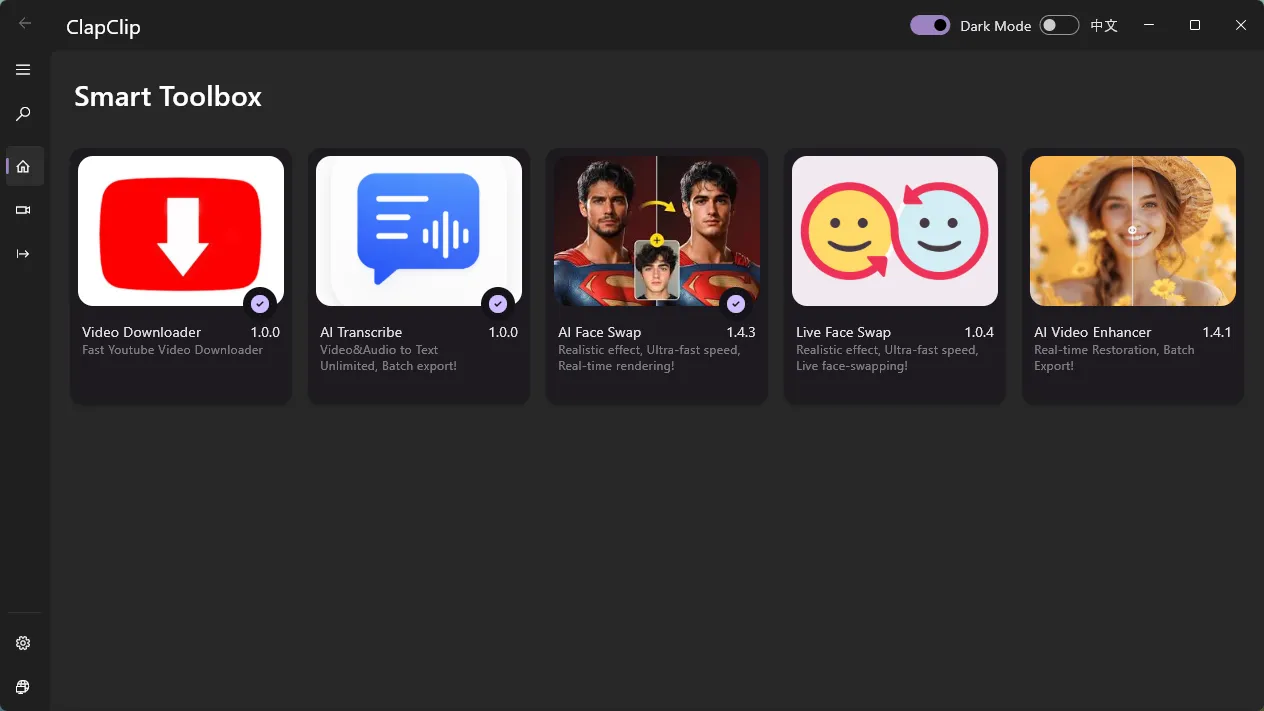
The cookie control is part of the desktop application, so exact button labels can change between builds. The behavior that matters is stable: attach a Netscape-format cookies.txt in the link dialog, then start the download with the complete video page URL.
Use this rule: if the URL is a profile, channel page, search-results page, or a bare video ID, replace it with the complete video page URL before troubleshooting the cookie file.
How do you export cookies.txt from Chrome or Edge?
Chrome and Edge need an extension that can write Netscape-format cookies. Search the Chrome Web Store or Microsoft Edge Add-ons for a cookies.txt exporter, then check the exact name, publisher, requested permissions, recent reviews, update history, and privacy policy before installing. The exporter should write the file locally, not send cookies to a remote service.
After installing a trusted exporter:
- Sign in to the target site and open the video page.
- Open the extension from the browser toolbar.
- Choose the current site or current domain only.
- Export in Netscape or
cookies.txtformat. - Save the file as
cookies.txtin a folder you can find.
Use this rule: if the exporter offers only a browser-wide export, do not use it. Export the current site or skip the cookie workflow.
How do you export cookies.txt from Firefox?
Firefox also needs an add-on that exports Netscape-format cookies.
- Search Firefox Add-ons for a reputable
cookies.txtexporter. - Review its publisher, permissions, reviews, and privacy policy.
- Sign in to the target site and open the exact video page.
- Export cookies for the current site only.
- Save the result as
cookies.txt.
Use this rule: if the exporter produces a JSON backup, a browser profile, or a password export, it is the wrong file. Go back and choose Netscape cookies.txt output.
How do you check the file is Netscape format?
Open cookies.txt in a plain-text editor. The first line should normally be:
# Netscape HTTP Cookie File
The remaining lines are tab-separated and contain seven fields: domain, include-subdomains flag, path, secure flag, expiration as a Unix timestamp, name, and value.
.example.com TRUE / TRUE 1893456000 cookie_name cookie_value
The timestamp above is an example, not a fixed expiration. If you copy the value from a real export, keep it as exported.
If the file begins with a JSON array, it is the wrong format:
[
  {
    "name": "cookie_name",
    "value": "cookie_value"
  }
]
Use this rule: if the file starts with [ or {, it is JSON. Renaming it from .json to .txt does not convert it; export again in Netscape format.
How do you import it into ClapClip?
- Open ClapClip Video Downloader.
- Open the link input dialog.
- Paste the complete video page URL.
- Find the Cookie field.
- Choose the exported
cookies.txt. - Confirm the dialog.
- Start the download.
You do not need to open the file or paste its contents manually. Use a complete video page URL, for example:
https://www.youtube.com/watch?v=xxxx
https://www.instagram.com/reel/xxxx/
https://www.tiktok.com/@username/video/xxxx
Do not enter only a video ID, a profile URL, a channel page, or a search-results page. For platform-specific quirks, use the dedicated YouTube downloader, TikTok downloader, or Instagram downloader workflow.
Use this rule: if the download still asks you to sign in, re-export a fresh file from the exact video page before changing the URL or the output settings.
What if the download still asks you to sign in?
A cookie file is a snapshot, and sites invalidate sessions on their own schedule. Work through this sequence:
- Return to the site in the same browser and confirm you are still signed in.
- Reload the exact video and confirm it still plays.
- Complete any new CAPTCHA or verification request.
- Delete the old cookie file.
- Export a fresh
cookies.txtfor the current site. - Import the new file and retry the complete URL.
| Problem | Likely cause | Fix |
|---|---|---|
| File cannot be selected | Wrong extension or wrong location | Save it locally with the .txt extension |
| File not recognized | JSON, empty, or malformed export | Export again in Netscape cookies.txt format |
| Still asked to sign in | Expired session, or cookies from the wrong domain | Sign in again and export from the video page |
| Video unavailable | Your account lacks access, or the site restricts the region | Confirm the video plays for the same account in the browser |
| Worked yesterday, fails today | The site invalidated the session | Export a new cookie file |
| Wrong video downloads | A profile, search, or other non-video page was used | Copy the complete canonical video URL |
Use this rule: if the video no longer plays in your browser, a fresh cookie will not restore access. Fix the account or access issue on the site first.
How do you handle cookie files safely?
Treat cookies.txt like a temporary password:
- Import only files you exported yourself.
- Export only the current site's cookies.
- Never email, message, or upload the file, including to a forum, cloud drive, or support ticket.
- Never commit it to a source-code repository.
- Keep it only as long as the download requires, then delete it.
- If it may have been exposed, sign out of all sessions on that site, change the password, enable two-factor authentication, and delete the file.
Use this rule: if the file must exist between steps, keep it local, keep it current-site only, and delete it when the download finishes. Those three habits remove most of the risk.
ClapClip's downloader writes permitted media to the local folder you choose. Review the site's privacy information before using any workflow that involves account data.
Bottom line
A cookie file is a session shortcut, not an access key. Export it for one site, use it for one download, and delete it. If the video does not play in your signed-in browser, no cookie file will fix that, and a browser-wide export only adds risk.
Related ClapClip tools
YouTube Downloader for Windows
Native YouTube downloader for Windows 10 & 11. ClapClip installs like normal software — batch downloads, original quality, private, free. No browser needed.
YouTube Playlist Downloader
Download entire YouTube playlists in one click on Windows. ClapClip queues every video, keeps order and names, saves MP4 or MP3 — free, no limits.
YouTube Batch Downloader
Bulk download YouTube videos on Windows. ClapClip queues multiple links, playlists, and channels in one batch — original quality, unattended, free.