
Cut a 45-Minute Conference Talk Into Shorts: What the AI Picks, What You Fix
ClapClip Team · Published on 2026-11-03 · 6 min read
A conference talk is forty-five minutes of material the speaker has already rehearsed, delivered to a camera, with a good microphone. It is also the recording most likely to sit untouched on a drive, because turning it into short clips means watching the whole thing again with a timeline open. The point of an AI clip generator is to do the watching.
This guide is about the workflow in ClapClip for Windows: what the AI does with a long recording, what leaves your machine and what does not, and where the speaker's own judgment still has to come in before anything is posted.
Key takeaways
- The AI watches the transcript, not the picture. ClapClip transcribes the talk locally, scores every stretch of speech for hook, flow, value and trend, and returns the highest-scoring moments that do not overlap.
- Only the text transcript is sent for clip selection. Transcription and rendering run on your PC; the video file is never uploaded.
- Captions are the headline. Short-form video is watched on mute. Word-level captions are burned in, highlighted as each word is spoken, and editable before export.
- Review before you render. The candidates are a shortlist, not a decision. A slide reference the clip cannot show, or a joke that needs the setup, is for you to catch.
What makes a talk good source material?
Three things a talk has that a podcast or a stream often lacks: a prepared structure, so the strong moments are clustered; one speaker, so the audio is clean; and a camera that mostly stays on the person, so a vertical crop has a face to follow.
What it also has: slides. A moment that depends on a chart the audience is looking at does not survive as a nine-second vertical clip of the speaker's face. That is the first thing to look for in the candidates.
Rule: a clip has to make sense with the slide invisible. If the speaker says "as you can see here", it is a clip for the full video, not for Shorts.
What happens when you load the recording?
- Transcription, locally. The speech is transcribed on your Windows PC. This is the same recognizer the app uses for subtitles, and it gives every word a time.
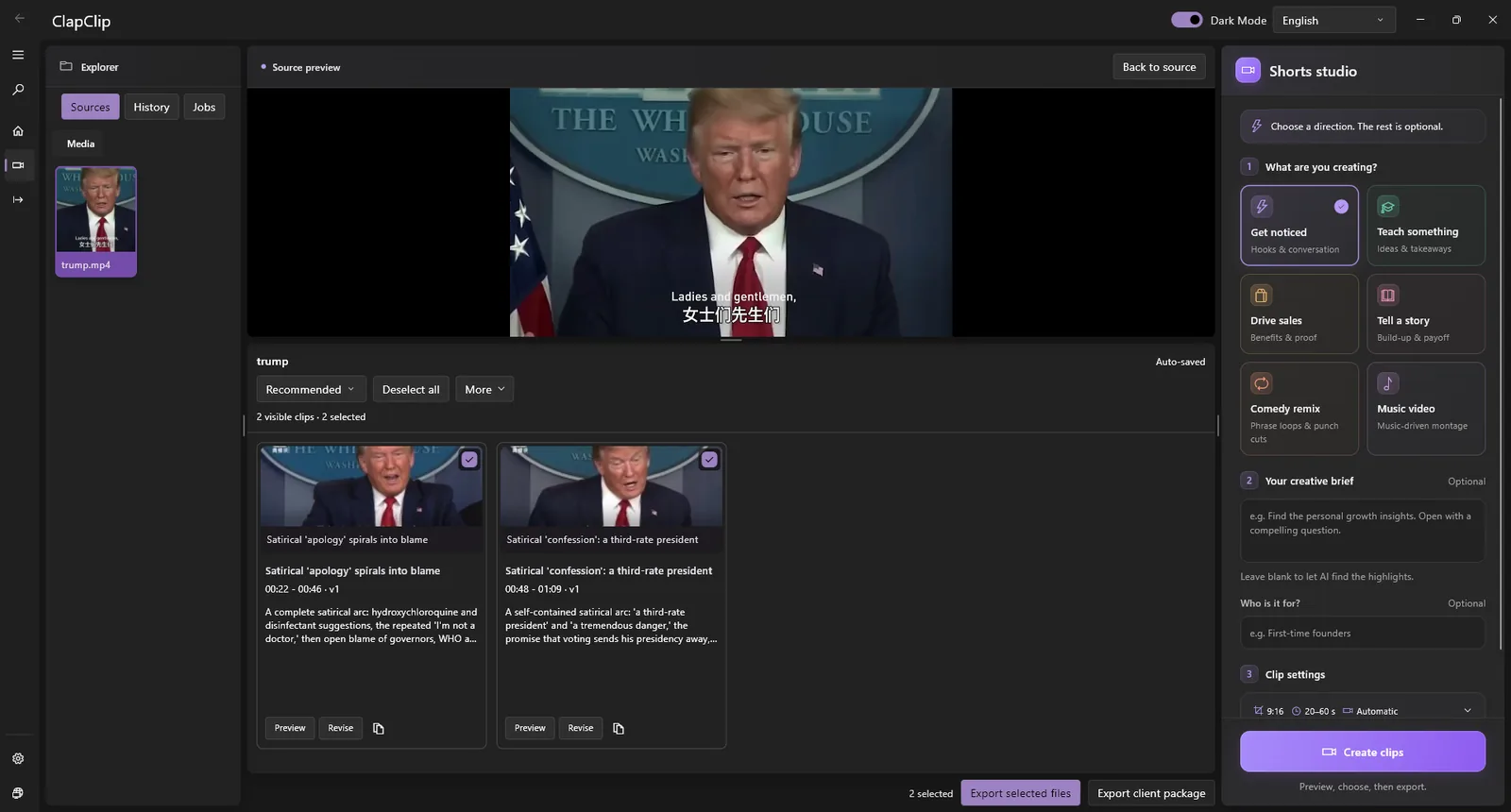
- Scoring. The transcript goes to the AI clip analysis, which scores each part of the talk on hook, flow, value and trend and returns the highest-scoring moments that do not overlap. The video file does not go with it; only the text transcript is sent.
- Candidates. You get a list of clips to review, each with its captions and suggested hashtags, rather than a finished set of exports.
- Rendering, locally. The clips you keep are cropped to 9:16 for TikTok, Shorts and Reels, or 1:1 and 16:9 if you need them, with captions burned in, on your own machine.
For a speaker whose talk was recorded under a conference's media agreement, that split matters: the recording itself stays where it is, and what is shared with the AI is the transcript of a talk that was given in public.
How do you review the candidates?
Go through the shortlist with three questions, and expect to drop about as many as you keep:
- Does it stand alone? The first line has to work for someone who has not seen the talk. A clip that opens mid-argument needs the sentence before it; a clip that opens on the punchline has lost the setup.
- Does the picture hold? The crop follows the speaker. If the camera cut to the audience or the slides for half the clip, trim it or drop it.
- Is the claim one you want quoted? A provocative line scores well for hook. Out of context, it is also the line that gets screenshotted. Keep the ones you would say again in an interview.
Captions are editable before export. Fix the proper nouns the recognizer got wrong, a product name, a colleague's name, and read them once at phone size: a caption that wraps badly is harder to read than no caption.
Rule: if you would not post the clip under your own name with no reply available, cut it.
What should the captions look like?
The app burns in word-level captions that highlight each word as it is spoken, with emoji and keyword emphasis available. For a professional talk, use the emphasis sparingly: highlight the term the clip is about, not every third word. The karaoke-style highlighting is what keeps a muted viewer following; the emoji is a choice for the audience you post to, and a security conference is not a cooking channel.
Check the caption against what was actually said. The transcript is accurate for ordinary speech; it is least reliable on names, acronyms and the one made-up term the talk coined, which is exactly the term the clip exists to spread.
How many clips should a talk produce?
Fewer than the shortlist. A forty-five-minute talk might yield a dozen candidates, and five or six good posts, spread over the weeks after the event rather than published in one afternoon. The sequence matters: lead with the clip that explains what the talk was about, follow with the ones that need that context, and keep the sharpest line for when people already know who is speaking.
Each clip leaves the machine with its own captions and hashtags, so the posting itself is the small part of the job.
What this does not do
- It does not read the slides. A chart or a code sample the speaker refers to is not in the clip unless the camera showed it.
- It does not improve a bad recording. A talk filmed from the back row with room audio produces a transcript with gaps and clips with a tiny face. Ask the organizer for the camera feed.
- It does not decide for you. The scores rank moments by how they read; whether a moment represents the talk is the speaker's call.
Related guides
- Long video to Shorts describes the feature this workflow is built on.
- Auto captions for Shorts covers the caption styles and what can be edited before export.
- Transcribe long audio without uploading is the transcription step on its own, for talks you only want as text.
Related ClapClip tools
Long Video to Shorts
Turn a long video into short clips with AI. ClapClip finds the best moments and renders vertical shorts with captions — locally on Windows, no upload.
Auto Captions for Shorts
Add auto captions to short videos with AI. Word-level highlighting, emoji, and keyword emphasis burned in locally — no manual subtitle work.
Video Repurposing AI
Repurpose long videos into multiple shorts with AI. ClapClip finds the best moments and renders captioned clips for every platform — locally on Windows.